Tabbed SSH terminals
A fast, stable renderer that handles full-screen TUIs like htop, btop, k9s, vim and neovim without artefacts.
원격 서버에 SSH로 접속한 상태에서 Claude Code를 대화형으로 실행 중입니다. 클립보드의 스크린샷을 Claude에게 보여주고 싶어 Ctrl+V를 누릅니다. 일반 SSH 클라이언트에서는 Claude가 이미지를 전혀 못 봅니다 — 원격 셸에는 제어 문자만 전달됩니다. Ctrl-V Terminal은 사용자의 컴퓨터에서 붙여넣기를 가로채 이미지를 업로드하고 저장된 경로를 커서 위치에 삽입합니다.
SSH에서 Ctrl+V는 그저 제어 문자일 뿐 — 붙여넣기가 아닙니다.
Ctrl-V Terminal은 사용자의 컴퓨터에서 붙여넣기를 가로채 클립보드 이미지를 업로드하고 파일 경로를 커서 위치에 삽입합니다.
같은 단축키, 같은 Claude 세션. 그냥 작동합니다.
Paste an image straight into a remote terminal with Ctrl+V — its path lands at your cursor so tools like Claude Code or Codex can read it instantly. Where VS Code needs an extension, this terminal just works.
1,042 다운로드 Windows 10/11
Screenshots are how we describe UI bugs, error dialogs, design mocks — everything. Ctrl-V Terminal makes them a first-class input for your remote AI coding session.
Anywhere — a screenshot tool, browser, Figma, a chat window. It goes on your clipboard as usual.
Ctrl-V Terminal detects the image on the clipboard and uploads it to the remote host over the same SSH connection. On macOS the shortcut is Cmd+V, because Ctrl belongs to the shell there.
The remote file path (e.g. /tmp/ctrl-v/screenshot-1234.png) is typed in at the cursor — ready for Claude Code, vim, a shell prompt, or wherever you were.
Think of it as Ctrl+V that actually works over remote SSH — no more scp gymnastics, no more "let me describe the screenshot in words". A MobaXterm-alternative purpose-built for AI-assisted development.
A fast, stable renderer that handles full-screen TUIs like htop, btop, k9s, vim and neovim without artefacts.
The headline feature. Ctrl+V uploads the image on your clipboard to the remote host and types its path at your cursor. How it compares to scp and base64 →
Pasting several lines? Review and edit the block in a dialog before it runs — MobaXterm-style paste confirmation, but editable.
Drag to select text even in apps that grab the mouse — Claude Code, vim, tmux. Copy-on-select and Ctrl+Shift+C included.
See your Claude Code usage — 5-hour session and weekly limits — live in the menu bar. No token to paste; just pick the host you're logged in on. Why this matters over SSH →
Run a long job in a background tab — the moment it finishes or asks for input, the tab lights up and you get an in-app or Windows notification. While it works, the tab’s dot pulses.
Your work survives network hiccups. Close the lid, walk to the next room, resume from another PC — the session is exactly where you left it.
Connect direct, via Apple / ARD auth, or tunnel over SSH. Pick per-session quality (Fast / Balanced / Sharp), with view-only mode and clipboard sync.
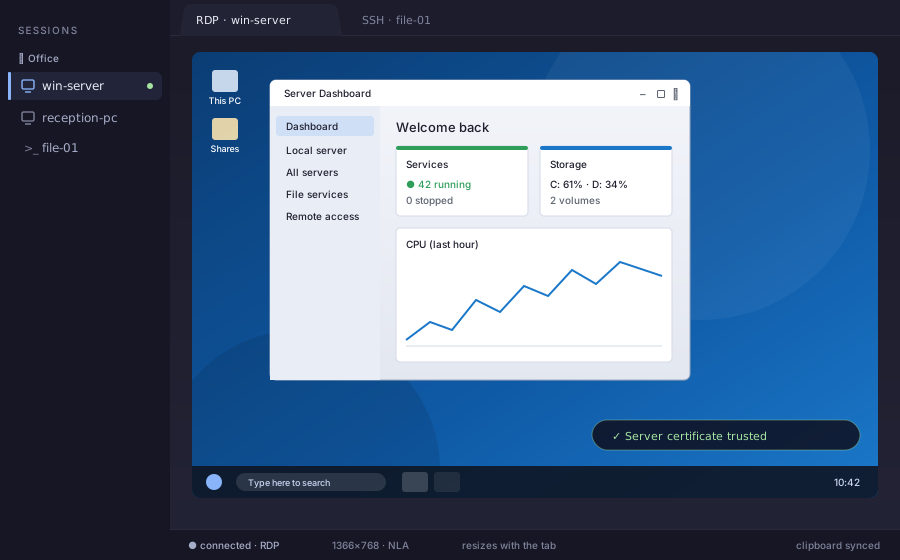
Open a Windows PC or server in a tab: network-level sign-in, clipboard sync, and a desktop that resizes with the tab. Direct or tunnelled over SSH — and the server’s certificate is checked before you sign in.
Browse, upload and download files and whole folders, multi-select, Explorer-style cut/copy/paste, and drag-and-drop.
Drag any file straight out of the SFTP browser onto Windows to download it. It streams over your existing SSH connection — no extra setup.
Drag any tab out into its own window. Rearrange, rename, close — same as your browser. Great for side-by-side sessions.
Split any tab into up to 4 resizable terminals — side-by-side, stacked, or a 2×2 grid. Turn on Broadcast to type one command into every pane at once.
Colour-code tabs to group related sessions, double-click to rename, and drag to reorder them like a browser.
CPU, memory, network, uptime, and disk — always visible in the status bar of every remote session.
URLs open in your browser, even when they wrap. Click a remote folder path and the Files pane opens there; click a file and it opens in its default app, fetched over SFTP.
On first launch it detects your PuTTY install and imports every saved session — hostnames, ports, keys, colors. No manual configuration.
Sort saved sessions into groups, and make a new group right from the session editor. Pick SSH, RDP or VNC with one click, keep rarely used options folded away, and Save & connect in one go.
Encrypt every saved session password with one master password only you know, asked at startup. Optional “remember on this PC” skips the prompt on your own machine.
Move your sessions between machines with a single, passphrase-protected file — export from one PC, import on another. Everything stays local otherwise.
Ships with dozens of themes — search, preview, pick. Remembered per session. Your late-night eyes will thank you.
Reopen your tabs (names, colours, order) and window layout after a crash or update.
A playful penguin screensaver kicks in when the app goes idle.
New versions install themselves in the background. You get bug fixes and features without lifting a finger.
Download the free version, use every feature, and unlock unlimited saved sessions whenever you're ready — for yourself or for your team.
제대로 체험하는 데 필요한 모든 것.
터미널에서 사는 모든 분을 위해.
One order, one key, many seats.
You download the free app and unlock Pro in-app — or upgrade directly with the Get Pro button above. Team purchases use the same license flow — one key per pack that activates on all its seats.



Yes. The free version has every feature enabled and lets you keep up to 3 saved sessions — enough to try it in earnest on your real setup. The one-time Pro license removes the session limit and lets you install it on up to 3 devices.
Claude usage alerts when you approach the 5-hour or weekly limit, unlimited saved sessions, install on up to 3 of your own devices, priority support, and a password-protected screensaver lock. All future 1.x updates are included. It's a one-time purchase — no subscription, no expiring license.
Yes — Business ships as three fixed packages: 5 seats for €79.95 (€15.99/seat, save €20 vs 5× Pro), 25 seats for €299.75 (€11.99/seat, save €200), or 50 seats for €499.50 (€9.99/seat, save €500 — half the per-seat price). Each pack ships as one license key that activates on all seats in the pack. We can invoice with VAT (reverse-charge for valid EU VAT IDs). Need a different quantity, PO, or custom terms? Request a quote.
Yes. An RDP session opens a Windows PC or server in a tab, with network-level sign-in (NLA), clipboard sync and a desktop that resizes with the tab — directly or tunnelled through one of your SSH sessions. The first time you connect you see the server’s certificate and decide whether to trust it; a certificate that later changes is flagged before you sign in. Sound and drive sharing are not supported yet. The RDP engine is IronRDP, the open-source implementation by Devolutions.
Windows 10 and 11 (64-bit), macOS 11 or newer (one universal build for both Apple Silicon and Intel), and Linux on x86-64 as an AppImage, a .deb or an .rpm.
Your sessions live on your PC — they never leave it. Passwords and passphrases are encrypted at rest using the Windows Data Protection API (DPAPI). Session exports are additionally protected with a passphrase you choose. Nothing about your hosts, credentials or usage is sent to us.
Yes — updates are downloaded and installed in the background. You can opt out in settings if you'd rather pin a version. All releases are also published on GitHub.
Right now the installer is unsigned — Windows SmartScreen has to build up "reputation" for a new publisher and code-signing certificates for a small vendor are expensive. If you see the blue warning, click "More info" and then "Run anyway". A properly signed build is on the roadmap. All releases are published on GitHub so you can verify checksums if you'd like.
Use the short form at Suggest a feature. It lands directly in our inbox — we read every submission and reply to the email address you leave (usually within one business day). If you prefer discussing ideas openly so others can upvote and comment, GitHub Discussions on the releases repo works too.
Longer reads on the workflows this app was built for.
SCP, base64, network shares — the usual workarounds and why they interrupt what you were doing.
Read the guide → ComparisonAn honest look at the SSH clients that come up when you outgrow MobaXterm Home Edition.
Read the comparison → AI workflowThe 5-hour and weekly limits reset on their own schedule. How to see them coming from inside your terminal.
Read the walkthrough →Ctrl-V Terminal은 무료 다운로드입니다. 모든 기능은 첫 실행부터 사용할 수 있습니다.
이렇게 설치하면 새 버전은 패키지 관리자를 통해 받습니다.
irm https://ctrl-v-terminal.appgrid.eu/install.ps1 | iexcurl -fsSL https://ctrl-v-terminal.appgrid.eu/install.sh | shcurl -fsSL https://ctrl-v-terminal.appgrid.eu/install.sh | sudo shbrew tap it-worx-nl/tap
brew trust it-worx-nl/tap
brew install --cask ctrl-v-terminalcurl -fsSL https://ctrl-v-terminal.appgrid.eu/ctrl-v-terminal.gpg | sudo tee /usr/share/keyrings/ctrl-v-terminal.gpg >/dev/null
echo 'deb [signed-by=/usr/share/keyrings/ctrl-v-terminal.gpg] https://ctrl-v-terminal.appgrid.eu/apt stable main' | sudo tee /etc/apt/sources.list.d/ctrl-v-terminal.list
sudo apt update && sudo apt install ctrl-v-terminalsudo curl -fsSL -o /etc/yum.repos.d/ctrl-v-terminal.repo https://ctrl-v-terminal.appgrid.eu/ctrl-v-terminal.repo
sudo dnf install ctrl-v-terminal탭형 SSH 클라이언트가 처음이신가요? "설치 완료"에서 "Claude Code에 스크린샷 붙여넣기"까지 가는 최단 경로입니다.
앱을 열고 새 세션을 클릭한 다음 SSH(Linux/Unix), RDP(Windows 데스크톱) 또는 VNC를 선택합니다. 기본값은 SSH입니다. 이전에 PuTTY가 설치되어 있었다면 세션이 이미 가져와져 있습니다 — 하나를 골라 3단계로 바로 넘어가세요.
호스트명 또는 IP, 해당 서버의 사용자 이름, 그리고 SSH 키 파일(권장) 또는 비밀번호. 내일 다시 입력할 필요가 없도록 세션을 저장하세요.
원격 셸이 담긴 새 탭이 열립니다. 크기 조절, 분할, 추가 탭 열기 — 익숙한 터미널 조작이 모두 됩니다.
아무 이미지를 클립보드에 복사하고 원격 셸에 포커스를 둔 뒤 Ctrl+V를 누르세요. 이미지가 서버의 /tmp에 업로드되고 경로가 커서 위치에 삽입됩니다. 그것을 Claude Code나 Codex에 전달하면 완료입니다.